Double eSIM on iPhone? Models and Technical Limits
11/11/2026
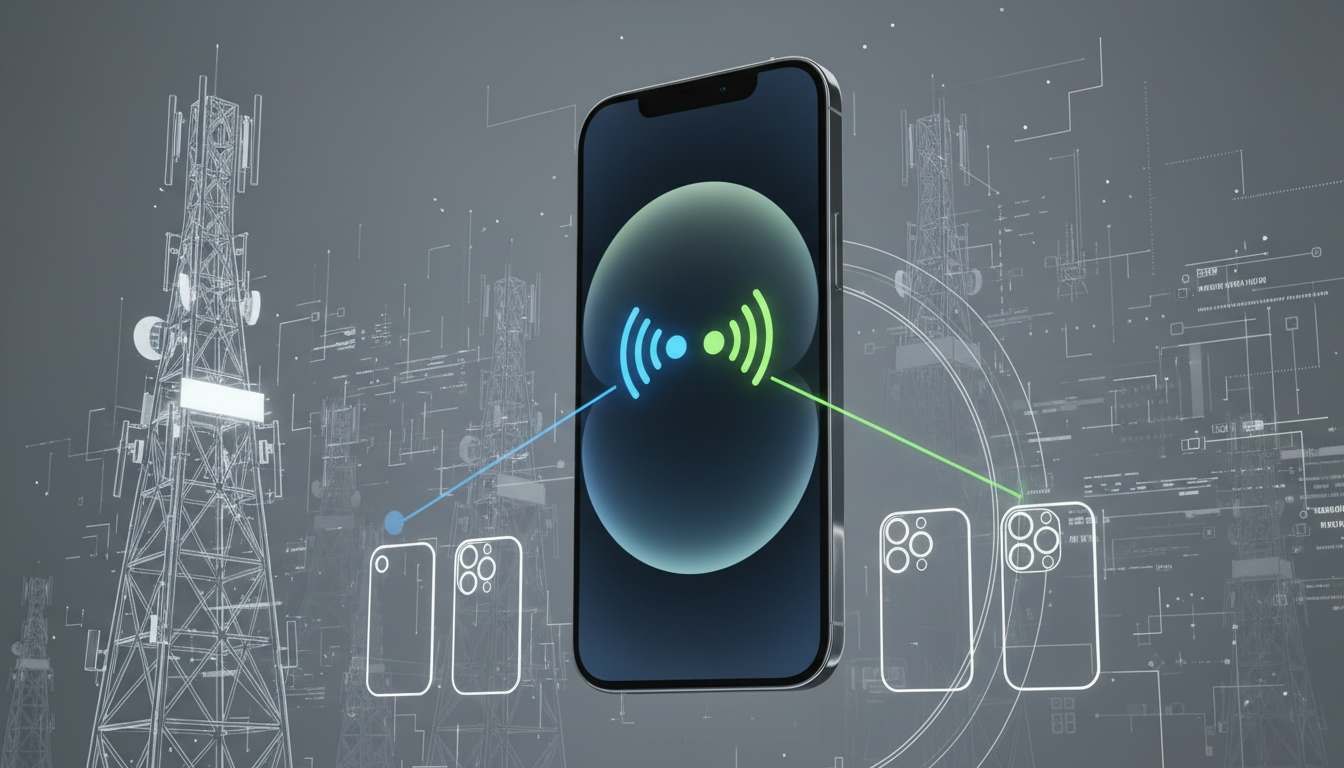
Two active eSIMs work on iPhone 13 and later, provided the iPhone runs a compatible version of iOS and both cellular plans support eSIM. Earlier models, including iPhone XS, XS Max, XR, and iPhone 11 or 12, generally support Dual SIM through one physical SIM and one eSIM, not two active eSIMs.
The main technical limit is that an iPhone has two active lines but only one cellular data connection at a time.
Which iPhone Models Support Two Active eSIMs?
Apple introduced support for two active eSIMs with the iPhone 13 generation. The exact configuration still depends on the market where the phone was sold and on the carrier providing each plan.
| iPhone model or generation | Two active eSIMs | Physical SIM plus eSIM | Important limitation |
|---|---|---|---|
| iPhone XS, XS Max, XR | No | Yes | Requires iOS 12.1 or later and carrier support |
| iPhone 11 and iPhone 12 series | No | Yes | Two lines can be active, but only one can be an eSIM |
| iPhone 13, 14, 15, 16, and later generations | Yes | Yes, where a SIM tray exists | Two eSIMs can remain active simultaneously |
| U.S. iPhone 14 and later | Yes | No physical SIM tray | Every cellular line must be an eSIM |
| China mainland, Hong Kong, and Macao variants | Model-dependent | Model-dependent | Regional hardware rules can differ |
Apple’s Dual SIM support began with the iPhone XS, iPhone XS Max, and iPhone XR, but Apple required iOS 12.1 for that original eSIM feature. That does not mean those phones support two eSIMs at once.
On those models, the normal arrangement is a physical nano-SIM plus an eSIM.
For a dual eSIM iPhone, check the model number and region before buying a plan. A U.S.
iPhone 14, for example, has no SIM tray, while an iPhone 14 sold in some other markets may include one. The absence of a SIM tray does not prevent two eSIMs; it simply removes the physical-SIM option.
The regional model trap
When a phone was purchased in mainland China, Hong Kong, or Macao, the model configuration may differ from the international version. Some regional iPhones support two physical SIM cards instead of eSIM functionality, while other models have different combinations.
The consequence is practical: an iPhone that looks identical in a store may not accept the same eSIM setup after you travel.
I always start by checking Settings > General > About and recording the model number before purchasing an eSIM. Then I verify the carrier’s compatibility page.
Buying the plan first and checking the hardware later is how travelers end up with an activation QR code their phone cannot use.
How Two eSIMs Work on an iPhone
An iPhone can store multiple eSIM profiles, but storage is not the same as activation. On supported models, two cellular lines can be switched on under Settings > Cellular or Settings > Mobile Data, depending on the region and iOS language.
The normal setup looks like this:
- Open Settings > Cellular > Add eSIM.
- Scan the carrier’s QR code, transfer the plan from another iPhone, or use the carrier’s app.
- Label each line, such as “Personal,” “Work,” or “Travel.”
- Turn on both lines under the cellular settings.
- Choose the default line for calls, messages, and cellular data.
- Enable Allow Cellular Data Switching only if you understand which line may be used for data during a call.
The carrier’s activation method matters. Some providers use a QR code, while others download the profile through an app or carrier link.
Apple’s eSIM implementation follows the GSMA Remote SIM Provisioning framework, which lets the operator download a subscriber profile without inserting a plastic SIM card. The profile still belongs to the carrier: Apple does not remove a carrier lock or guarantee that a third-party plan will activate.
Use eSIM promo codes for travel plans only after confirming that the provider covers your destination and supports your iPhone model. A discount cannot fix a regional compatibility problem or an iPhone that is carrier-locked.
Calls, texts, and iMessage
Both phone numbers can receive calls and messages while both lines are active, but the behavior changes during a call. Apple’s Dual SIM system uses a single radio connection for cellular service, so when one line is handling a standard cellular call, the other line may show no service unless the carrier supports Wi-Fi Calling and the required data behavior.
That limitation is easy to miss: if your work line is on a call and your personal line is not registered through Wi-Fi Calling, an incoming call on the personal number may go directly to voicemail. This is not an eSIM failure; it is a radio and network limitation.
iMessage and FaceTime can use either selected number, but the chosen line must be enabled for those services. SMS and MMS routing follows the line selected for the conversation.
Before leaving home, send a test message from each number and confirm the recipient sees the intended caller ID.
Mobile data is not truly dual at the same time
Two active eSIMs do not provide two simultaneous cellular data streams. In Settings > Cellular > Cellular Data, you select one line as the data line.
The iPhone can switch data between lines in limited circumstances when Allow Cellular Data Switching is enabled, but that does not combine the plans or double the speed.
For travel, I would normally assign the home line to calls and texts, then select the travel eSIM for data. If the home line remains enabled for data roaming, background traffic can create charges even when the travel eSIM is installed.
Disable data roaming on the home line unless your carrier explicitly includes roaming.
Carrier, Unlock, and Activation Limits
A compatible iPhone is only one part of the setup. Each carrier must support eSIM, and the iPhone must be unlocked if the two plans come from different networks.
Check Settings > General > About > Carrier Lock. “No SIM restrictions” means the phone is unlocked.
If a carrier name or restriction appears, a second eSIM from another network may fail even when the hardware supports it. An unlocked phone can still reject a plan if the operator does not support the device’s IMEI, country, or frequency bands.
Before activating the second line, confirm:
- The iPhone model supports the required eSIM arrangement.
- iOS is current enough for the carrier’s activation process.
- The phone is unlocked when using two different carriers.
- Both plans include service in the country where you will use them.
- The travel line supports data-only or voice service as required.
- The primary line has data roaming disabled if you want the travel eSIM to carry data.
A plan advertised as “unlimited” may still apply network-management rules, hotspot restrictions, or a high-speed allowance. MyBestSim is useful when comparing current travel eSIM options, but compatibility remains a separate check: the provider’s destination coverage and the iPhone’s hardware must both match.
How to Switch Between eSIM Lines Safely
You do not need to delete one eSIM to use the other. Under Settings > Cellular, tap a line to turn it on or off, change its label, select it for cellular data, or choose the default voice line.
When switching, watch for the status indicators at the top of the screen. If the travel line is selected for data but the home line still shows roaming activity, disable data roaming on the home line immediately.
The mechanism is straightforward: the phone routes packets through the line marked for cellular data, but carrier settings and roaming permissions can still allow the other line to connect in specific situations.
On a trip, use this sequence:
- Keep the home line enabled for incoming SMS if you need bank verification codes.
- Set the travel eSIM as the cellular data line.
- Turn off data roaming on the home line.
- Disable automatic cellular data switching if avoiding unexpected use matters more than uninterrupted data during calls.
- Test a webpage, an outgoing call, and an incoming SMS before relying on the setup.
Do not delete the home eSIM simply because it is not selected for data. Deleting a profile can require a fresh carrier activation, and some operators limit how often an eSIM can be transferred. If you need cheaper travel data, compare unlimited eSIM plans while keeping the original line stored and clearly labeled.
One final detail affects travelers using the U.S. iPhone 14 or later: because Apple removed the physical SIM tray on those models, a replacement carrier must support eSIM activation; a physical SIM card from a local shop cannot be inserted as a fallback.
FAQ
Does every iPhone support two active eSIMs?
No. Two active eSIMs are supported on iPhone 13 and newer models, assuming compatible iOS, carrier support, and regional hardware. iPhone XS through iPhone 12 generally support Dual SIM with one physical SIM and one eSIM, rather than two simultaneously active eSIM profiles.
Which iPhone models can use two eSIMs simultaneously?
The iPhone 13, 14, 15, 16, and later generations can generally keep two eSIMs active. U.S. iPhone 14 and newer models are eSIM-only, while regional versions may include a physical SIM tray. China mainland, Hong Kong, and Macao variants require separate model-specific verification.
Can two eSIMs share cellular data at once?
No. Two lines may remain active, but the iPhone uses only one cellular data connection at a time. You choose the data line in Cellular settings, and optional data switching can move usage between lines without combining plans or increasing bandwidth.
Does an iPhone need unlocking for dual eSIMs?
The phone must be unlocked when using eSIM plans from different carriers. Check Settings > General > About > Carrier Lock and look for “No SIM restrictions.” Even an unlocked iPhone still requires compatible carriers, supported frequencies, suitable regional hardware, and an activation method accepted by each provider.
How should travelers configure two eSIM lines safely?
Keep the home line enabled for essential calls or verification texts, then select the travel eSIM for cellular data. Disable roaming on the home line, consider turning off automatic data switching, and test calls, messages, and internet access before depending on the setup abroad.

Daniel Park
Daniel is a travel-tech writer. At Promo Code eSIM he explains how to redeem eSIM promo codes and finds working codes for every major provider.